Creating an effective home office environment is fundamental to sustained remote work productivity and well-being.
The physical workspace where you spend your working hours directly influences your focus, comfort, energy levels,
and overall work quality. Understanding the key principles of home office design helps you create a workspace that
supports professional performance while protecting your physical and mental health over the long term.

⚠️ Note: This article provides general career information for educational purposes. We are not
employment agencies or career counselors. Product mentions are purely educational and do not constitute
endorsements. Research options independently based on your individual needs and budget.
Choosing the Right Location for Your Home Office
Selecting the optimal location for your home office is the foundation of your entire remote work setup. The space
you choose affects your ability to concentrate, maintain professional boundaries between work and personal life, and
participate effectively in virtual meetings and collaborative work sessions.
Space Selection Considerations
- Dedicated vs. Shared Spaces: Having a dedicated room for your home office provides the strongest
separation between work and personal life. If a separate room is not available, designating a specific corner or
area exclusively for work creates psychological boundaries that help you transition between professional and
personal modes. - Noise Management: Consider the noise environment of your chosen location. Proximity to busy streets,
household activity areas, or shared walls can create distractions that interrupt focus and reduce the quality of
virtual meetings. Choose the quietest available space and consider how noise levels vary throughout the day. - Natural Light Access: Natural lighting has documented benefits for mood, energy, and eye health. Position
your workspace near windows when possible, but be mindful of glare on screens. Placing your desk perpendicular
to windows rather than facing them directly often provides the best balance of natural light and screen
visibility. - Temperature and Ventilation: Comfortable temperature and adequate ventilation support sustained focus and
physical comfort. Consider the heating, cooling, and airflow characteristics of your chosen space across
seasons. A consistent, comfortable temperature helps maintain concentration throughout the workday. - Privacy for Professional Communication: If your work involves frequent video calls, phone conversations,
or confidential discussions, ensure your workspace offers appropriate visual and audio privacy. Background noise
and visual distractions during professional communications can affect your perceived professionalism.
Essential Desk and Chair Setup
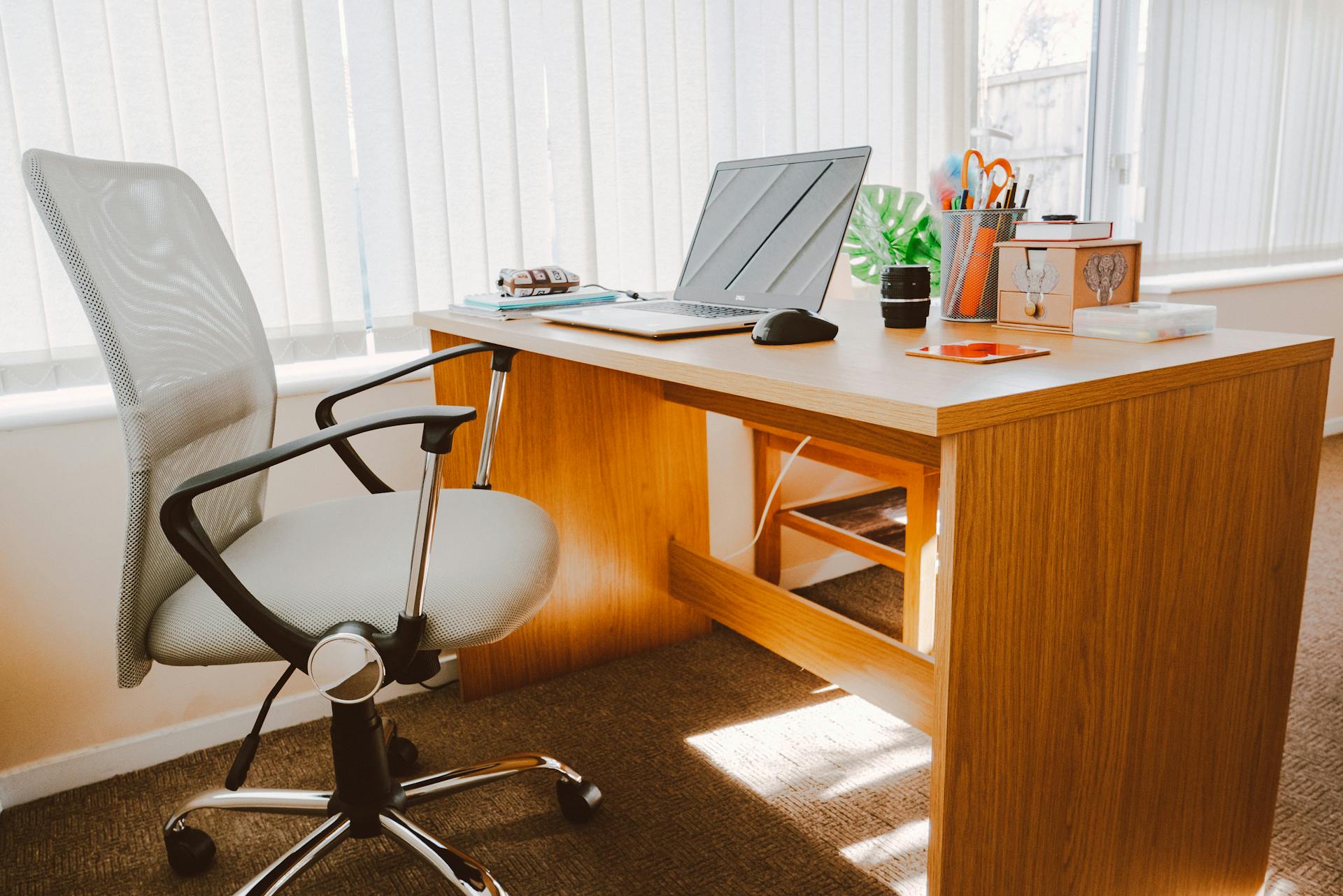
Your desk and chair form the core of your physical workspace. These two elements have the greatest impact on your
posture, comfort, and long-term musculoskeletal health during extended work sessions. Investing thought and
resources into these fundamental pieces pays dividends in sustained productivity and physical well-being.
Desk Selection and Configuration
- Surface Size Requirements: Your desk should provide sufficient surface area to accommodate your computer
equipment, any reference materials you use regularly, and enough clear space for comfortable mouse movement and
writing. Measure your equipment layout before selecting a desk to ensure adequate workspace. - Desk Height Considerations: Standard desk height is approximately 28 to 30 inches, but optimal height
depends on your body proportions. When seated properly, your forearms should rest on the desk surface at
approximately a 90-degree angle at the elbows. Adjustable-height desks offer flexibility to fine-tune
positioning and alternate between sitting and standing. - Standing Desk Options: Sit-stand desks allow you to alternate between sitting and standing throughout the
workday. Research suggests that alternating positions can reduce discomfort associated with prolonged sitting.
Converter units that sit on top of existing desks provide a more affordable alternative to full standing desks. - Cable Management: Organized cable routing keeps your workspace tidy and reduces hazards. Cable trays,
clips, and sleeves help manage the various power and data cables that accumulate in a technology-heavy
workspace. A clean, organized desk contributes to mental clarity and professional appearance during video calls.
Chair Selection and Ergonomics
- Adjustable Features: An office chair with adjustable seat height, backrest tilt, armrest height, and
lumbar support allows you to customize the chair to your body dimensions. Adjustability is more important than
brand or price when it comes to achieving comfortable, ergonomically sound positioning. - Lumbar Support: Proper lower back support helps maintain the natural curve of your spine during extended
sitting. Chairs with adjustable lumbar support allow you to position support at the appropriate height for your
spine. External lumbar support cushions can enhance chairs that lack built-in lumbar features. - Seat Depth and Width: The seat should be deep enough to support your thighs while leaving approximately
two to three inches between the front edge of the seat and the back of your knees. Seat width should accommodate
your body comfortably without restriction. - Material and Breathability: Chair material affects comfort during extended use. Mesh-backed chairs offer
breathability that helps regulate temperature, while padded chairs may provide more cushioning. Consider your
climate and personal comfort preferences when selecting chair materials.
Monitor and Display Configuration
Your monitor setup directly affects visual comfort, neck positioning, and work efficiency. Proper monitor
configuration reduces eye strain, minimizes neck and shoulder tension, and can improve productivity by providing
adequate visual workspace for your applications and documents.
Monitor Positioning Guidelines
- Eye-Level Alignment: The top edge of your monitor should be at or slightly below eye level when you are
sitting in your chair with proper posture. This positioning allows you to view the screen with a slight downward
gaze, reducing neck strain from tilting your head up or down excessively. - Distance From Eyes: Position your monitor approximately an arm’s length away from your seated position,
typically 20 to 26 inches from your eyes. At this distance, you should be able to read screen content
comfortably without leaning forward or squinting. - Tilt and Angle: Tilt the monitor slightly backward (approximately 10 to 20 degrees) to reduce glare and
align the screen perpendicular to your line of sight. Adjust the angle based on your specific lighting
conditions and seated position. - Monitor Arms and Stands: Adjustable monitor arms or stands provide flexibility to position your display
at the optimal height and distance. They also free up desk space by elevating the monitor above the desk
surface. Monitor arms allow quick repositioning when switching between solo work and video conferencing.
Single vs. Multiple Monitor Setups
- Single Monitor: A single high-resolution monitor works well for many roles, particularly when combined
with virtual desktop features of modern operating systems. Choose the largest display that fits your desk and
budget while maintaining comfortable viewing distance. - Dual Monitor Configuration: Two monitors can improve workflow efficiency for roles that require reference
to multiple applications simultaneously, such as coding, data analysis, financial work, or content creation.
Position monitors side by side with their inner edges touching and angle them slightly inward toward your center
position. - Ultrawide Monitors: Ultrawide monitors provide expanded horizontal screen space on a single display,
offering some benefits of dual monitors without the visual break between screens. These can be effective
alternatives for professionals who want expanded workspace without managing multiple displays. - Laptop Users: If using a laptop as your primary work computer, consider connecting an external monitor
and positioning the laptop screen as a secondary display. This elevates your primary viewing angle and provides
additional screen space. Laptop stands can also elevate the built-in screen to a more ergonomic height.
Keyboard and Mouse Ergonomics
Input devices are the tools you interact with most directly throughout the workday. Proper selection and positioning
of keyboards and mice reduce the risk of repetitive strain injuries and contribute to sustained comfort during
extended work sessions.
- Keyboard Height and Position: Your keyboard should be positioned so that your wrists remain straight and
your forearms are approximately parallel to the floor. Keyboard trays that mount below desk height can help
achieve proper positioning when desks are too high for comfortable typing. - Keyboard Types: Ergonomic keyboards with split designs, curved layouts, or tented configurations can
reduce wrist strain for some users. Standard full-size keyboards may also be comfortable when properly
positioned. Try different keyboard styles to find what works best for your hands and typing habits. - Mouse Selection: Choose a mouse that fits your hand comfortably and supports a natural wrist position.
Vertical mice, trackballs, and ergonomic shaped mice are designed to reduce wrist pronation and strain. Your
mouse should be positioned close to your keyboard at the same height to avoid reaching or shoulder strain. - Wrist Rest Usage: Wrist rests should support the heels of your palms during typing pauses, not during
active typing. Resting your wrists on a pad while typing can actually increase pressure on the carpal tunnel.
Use wrist rests for breaks between typing activities rather than as a continuous support.
Lighting Your Home Office
Proper lighting reduces eye strain, supports alertness, and creates a professional environment for video
communications. A thoughtful lighting plan combines ambient, task, and natural light sources to create even,
comfortable illumination throughout your workspace.
- Ambient Lighting: General room lighting should provide even illumination without creating harsh shadows
or bright spots. Overhead fixtures with diffused lighting or multiple light sources distributed around the room
create comfortable ambient conditions. - Task Lighting: A desk lamp provides focused light for reading documents, writing, or performing detailed
work. Adjustable desk lamps allow you to direct light where needed without creating glare on your monitor.
Choose lamps with adjustable brightness to adapt to changing conditions throughout the day. - Reducing Screen Glare: Position your monitor to avoid reflections from windows and overhead lights.
Anti-glare screen filters can reduce reflections on glossy displays. Adjusting your monitor brightness to match
the ambient light level in your workspace reduces eye strain from excessive contrast between the screen and
surrounding environment. - Video Call Lighting: Front-facing light is essential for professional video communications. Position a
light source in front of you rather than behind you to avoid appearing as a silhouette on camera. Ring lights,
desk lamps positioned in front, or even a window behind your camera can provide flattering, even lighting for
video calls.
Internet Connectivity and Technology Infrastructure
Reliable, high-speed internet connectivity is the lifeline of remote work. Video conferencing, cloud-based
applications, file sharing, and real-time collaboration tools all depend on stable internet connections. Investing
in reliable connectivity infrastructure prevents frustrating interruptions and ensures professional communication
quality.
- Internet Speed Requirements: Video conferencing typically requires minimum upload and download speeds of
5 to 10 Mbps per person for standard quality, with higher speeds recommended for HD video and screen sharing.
Assess your current internet plan against the demands of your specific work activities and consider upgrading if
necessary. - Wired vs. Wireless Connections: Wired ethernet connections provide more stable and consistent speeds
compared to wireless connections. If your workspace location allows it, connecting your work computer directly
to your router via ethernet cable can reduce latency and connection drops during critical meetings or data
transfers. - Router Placement and Quality: Position your router centrally in your home and elevated from the floor for
optimal wireless coverage. If your workspace is far from your router, consider mesh network systems or powerline
adapters that extend coverage to remote areas of your home. - Backup Internet Options: Having a backup internet option, such as a mobile hotspot through your phone’s
data plan, provides a safety net when your primary connection experiences outages. Test your backup option
periodically to ensure it is functional when needed.
Audio Equipment for Remote Communication
Clear audio is arguably more important than video quality for effective remote communication. Poor audio quality
creates communication barriers, leads to misunderstandings, and projects an unprofessional image. Investing in
quality audio equipment significantly improves your virtual meeting experience.
- Headsets: Dedicated headsets with built-in microphones provide consistent audio quality for voice calls
and video conferences. Over-ear headsets offer passive noise isolation that blocks environmental sounds, while
lightweight on-ear options may be more comfortable for extended wear. - Noise-Canceling Features: Active noise-canceling headsets reduce background noise, helping you focus
during calls and blocking distractions during concentrated work periods. Noise-canceling microphone technology
filters out environmental sounds from your voice transmission, improving audio clarity for meeting participants. - External Microphones: Dedicated USB microphones provide superior voice quality compared to built-in
laptop microphones. These are particularly valuable for professionals who participate in frequent presentations,
webinars, or podcasts. Position your microphone at a consistent distance for reliable audio quality. - Speaker Options: External speakers can supplement headsets for informal calls or when you need to
participate in meetings hands-free. Echo-canceling speakerphones are designed specifically for conference calls,
preventing feedback loops that disrupt communication.
Creating Boundaries Between Work and Personal Space
One of the greatest challenges of working from home is maintaining clear boundaries between professional
responsibilities and personal life. Physical workspace design plays a significant role in establishing these
boundaries and supporting healthy work-life integration.
- Physical Separation: If possible, close the door to your home office at the end of the workday. Physical
barriers between workspace and living space create psychological cues that support transitioning between work
and personal modes. - Visual Cues: Some remote workers use visual indicators to signal their availability to household members.
A closed door, a specific light, or a visible sign can communicate when you are in focused work mode or
available for interruption. - End-of-Day Rituals: Develop consistent routines that signal the end of your workday. This might include
shutting down your work computer, turning off your desk lamp, covering your workspace, or simply standing up and
leaving your office area. These rituals help your brain transition from work mode to personal time. - Separate Devices When Possible: Using separate devices or user profiles for work and personal activities
helps maintain boundaries and reduces the temptation to check work communications during personal time or
personal messages during work hours.
Organizing Your Workspace for Efficiency
An organized workspace reduces time spent searching for materials, minimizes distractions, and creates an
environment that supports focused work. Developing organizational systems that match your work style helps maintain
an efficient workspace over time.
- Desktop Organization: Keep your physical desktop clear of non-essential items. A clutter-free workspace
reduces visual distractions and creates space for the materials you need for your current task. Store supplies
and documents in designated locations rather than leaving them on your desk surface. - Filing and Storage Systems: Establish systems for both physical documents and digital files. Consistent
naming conventions, folder structures, and filing habits prevent document loss and reduce time spent searching
for information. Most remote work involves primarily digital files, so focus on developing a robust digital
organization system. - Supply Access: Keep frequently used supplies within easy reach of your seated position. Less frequently
used items can be stored in drawers, shelves, or cabinets near your workspace. Organizing supplies by frequency
of use optimizes your physical workflow. - Whiteboard or Reference Display: A whiteboard, bulletin board, or wall-mounted reference area provides
space for visual reminders, project timelines, task lists, and important reference information. Having key
information visible reduces interruptions to your workflow from searching through digital files or notes.
Comfort and Wellness Considerations
Long-term comfort in your home office requires attention to factors beyond basic furniture and equipment. Air
quality, temperature management, movement integration, and acoustic comfort all contribute to sustained well-being
during the workday.
- Temperature Management: Maintain a comfortable workspace temperature, generally between 68 and 76 degrees
Fahrenheit (20 to 24 degrees Celsius). A small fan or space heater can provide localized temperature adjustment
without affecting the rest of your home. - Air Quality: Adequate ventilation and air quality support alertness and comfort. Open windows
periodically for fresh air when weather permits. Indoor plants can contribute to air quality while adding visual
appeal to your workspace. - Movement Integration: Build regular movement breaks into your workday. Standing periodically, stretching,
or taking brief walks helps counteract the effects of prolonged sitting. Timer apps or reminders can help you
establish consistent movement habits throughout the day. - Eye Health Practices: Follow the 20-20-20 guideline: every 20 minutes, look at something approximately 20
feet away for approximately 20 seconds. This practice helps reduce eye fatigue from extended screen use.
Adjusting screen brightness, text size, and contrast settings also contributes to visual comfort. - Acoustic Comfort: If environmental noise is a concern, consider acoustic treatments such as soft
furnishings, rugs, curtains, or dedicated acoustic panels that absorb sound and reduce echo. White noise
machines or ambient sound applications can mask distracting background noise.
Budget-Friendly Home Office Solutions
Building an effective home office does not necessarily require a large upfront investment. Prioritizing essential
items and implementing improvements gradually allows you to develop your workspace over time within budget
constraints.
- Prioritize Ergonomics First: If budget is limited, invest first in a good chair and proper monitor
positioning. These two elements have the greatest impact on physical comfort and long-term health. Other
improvements can be added incrementally. - Repurpose Existing Furniture: A dining table or existing desk can serve as a temporary workspace. Use
books or boxes to elevate your monitor or laptop to the correct height. Creative solutions can address ergonomic
needs while you save for dedicated equipment. - Explore Employer Equipment Programs: Some employers offer stipends, equipment loans, or reimbursement
programs for home office setup. Investigate whether your employer or potential employers offer these benefits
before purchasing equipment independently. - Buy Gradually: Start with essentials and add items as needs become clear and budget allows. You may
discover that certain equipment is more important for your specific work than you initially expected, while
other items are less critical than anticipated.
Conclusion
Setting up a productive home office is an ongoing process of optimization rather than a one-time project. The most
effective home offices evolve as you develop a deeper understanding of your work patterns, comfort needs, and
professional requirements. By focusing on essential ergonomic principles, appropriate technology infrastructure,
thoughtful workspace organization, and physical boundary creation, you can build a home office environment that
supports sustained productivity and professional excellence in your remote work career.
What home office setup tips have made the biggest difference in your productivity? Share your workspace
strategies in the comments below!
About the Author